






Pseudo-localization for Automated i18n Testing
Pseudo-localization is a powerful testing technique that transforms your source text into a fake language to identify internationalization (i18n) issues before actual translation begins. This guide shows you how to automate pseudo-localization testing using the pseudo-l10n npm package.
What is Pseudo-localization?
Pseudo-localization is the process of transforming your application's source text into an altered, fake language that mimics how UI behaves after translation. It helps QA engineers and developers identify i18n issues early in the development cycle.
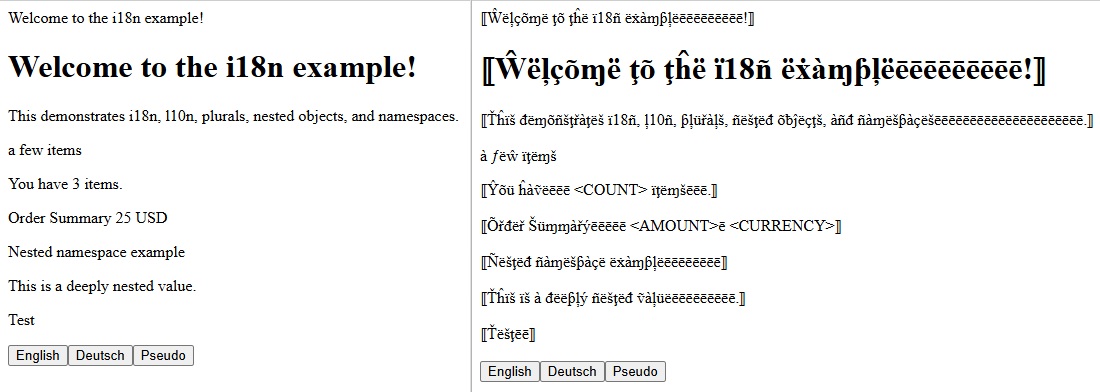
Example of using pseudo-localization to identify potential internationalization issues. The font and size are identical on both sides, but supporting other scripts often requires more space.
Why Pseudo-localization is Useful
Pseudo-localization helps you catch i18n issues early:
- Exposes layout breakages caused by text expansion (German and Finnish are typically 30-40% longer than English).
- Surfaces encoding issues by adding accented characters to test UTF-8 support.
- Ensures all strings are translatable - hard-coded text remains unchanged and is easy to spot.
- Reveals placeholder mishandling - dynamic content like {{name}} must be preserved.
- Helps define translation length limits for UI components with space constraints.
Automation Strategies for QA
Here are proven strategies to automate i18n testing with pseudo-localization:
Replace Latin letters with accented forms or different scripts to test character encoding and font support.
Example: "Save" → "Šàvē"
QA check: Ensure all characters display correctly and nothing breaks due to encoding issues.
Automatically expand each string by ~30–40% to mimic long languages like German or Finnish. Wrap with visual markers for easy clipping detection.
Example: "Save" → ⟦Šàvēēēēē⟧
QA check: Use automated screenshot comparison to spot UI overflow, clipping, or misalignment.
Replace interpolation variables (placeholders) with visible markers to verify they're preserved during translation.
Example: "You have {{count}} items" → "You have <COUNT> items"
QA check: Run regression tests; fail if a marker is missing or incorrectly escaped (<COUNT>).
Wrap text in right-to-left (RTL) markers using Unicode control characters to simulate Arabic or Hebrew.
QA check: Verify alignment, text direction, and mirroring are correct for RTL languages.
Add pseudo-localization to your automated test pipeline to catch i18n issues before they reach production.
QA check: Block deployment if tests detect missing translations, broken placeholders, or layout issues.
Automating with pseudo-l10n Package
The pseudo-l10n npm package automates pseudo-localization for your JSON translation files, making it easy to integrate i18n testing into your development workflow.
- Text Expansion: Simulates how translated text is often 30-40% longer than English.
- Accented Characters: Tests UTF-8 encoding and font support with accented equivalents.
- Visual Markers: Wraps strings with ⟦...⟧ markers to easily spot untranslated or truncated text.
- Placeholder Handling: Preserves placeholders like {{name}}, {count}, %key%, etc.
- RTL Simulation: Simulates Right-to-Left languages using Unicode control characters.
Install pseudo-l10n globally for command-line usage:
npm install -g pseudo-l10nOr add it as a development dependency:
npm install --save-dev pseudo-l10n
Transform your source translation file into a pseudo-localized version:
pseudo-l10n input.json output.json
Input (en.json):
{
  "welcome": "Welcome to our application",
  "greeting": "Hello, {{name}}!",
  "itemCount": "You have {{count}} items"
}
Output (pseudo-en.json):
{
  "welcome": "⟦Ŵëļçõɱë ţõ õür àƥƥļïçàţïõñēēēēēēēēēēēēēēēēēē⟧",
  "greeting": "⟦Ĥëļļõēēēēēē, {{name}}!ēēēēē⟧",
  "itemCount": "⟦Ŷõü ĥàṽë {{count}} ïţëɱšēēēēēēēēēēēēēēēē⟧"
}
Custom Expansion
pseudo-l10n en.json pseudo-en.json --expansion=30RTL Simulation
Simulate right-to-left languages like Arabic or Hebrew:
pseudo-l10n en.json pseudo-ar.json --rtlReplace Placeholders for Visual Testing
Replace placeholders with uppercase markers for easier visual detection:
pseudo-l10n en.json pseudo-en.json --replace-placeholders

# Input:  { "greeting": "Hello, {{name}}!" }
# Output: { "greeting": "⟦Ĥëļļõēēēēēē, <NAME>!ēēēēē⟧" }
Support for Different Placeholder Formats
The package supports various placeholder formats used by different i18n libraries:
# For i18next (default)
pseudo-l10n en.json pseudo-en.json --placeholder-format="{{key}}"

# For Angular/React Intl
pseudo-l10n en.json pseudo-en.json --placeholder-format="{key}"

# For sprintf style
pseudo-l10n en.json pseudo-en.json --placeholder-format="%key%"
Use pseudo-l10n programmatically in your Node.js scripts or build process:
const { generatePseudoLocaleSync, pseudoLocalize } = require('pseudo-l10n');

// Generate a pseudo-localized JSON file
generatePseudoLocaleSync('en.json', 'pseudo-en.json', {
  expansion: 40,
  rtl: false
});

// Pseudo-localize a single string
const result = pseudoLocalize('Hello, {{name}}!');
console.log(result);
// Output: ⟦Ĥëļļõēēēēēēēēēēēēēē, {{name}}!ēēēēē⟧
Integration into Your Workflow
Add pseudo-localization generation to your package.json scripts:
{
  "scripts": {
    "pseudo": "pseudo-l10n src/locales/en.json src/locales/pseudo-en.json",
    "pseudo:rtl": "pseudo-l10n src/locales/en.json src/locales/pseudo-ar.json --rtl"
  }
}
Generate pseudo-locales as part of your build process:
// build.js
const { generatePseudoLocaleSync } = require('pseudo-l10n');

// Generate pseudo-locales as part of build
generatePseudoLocaleSync(
  './src/locales/en.json',
  './src/locales/pseudo-en.json',
  { expansion: 40 }
);

generatePseudoLocaleSync(
  './src/locales/en.json',
  './src/locales/pseudo-ar.json',
  { rtl: true }
);
Integrate pseudo-localization into your continuous integration pipeline:
# .github/workflows/test.yml
- name: Generate pseudo-locales
  run: |
    npm install -g pseudo-l10n
    pseudo-l10n src/locales/en.json src/locales/pseudo-en.json

- name: Run i18n tests
  run: npm run test:i18n
Testing Strategy
- Generate pseudo-locale during your build process.
- Add pseudo-locale to your application (e.g., in the language selector).
- Test your application with pseudo-locale enabled.
- Review the application for common i18n issues.
- Missing ⟦⟧ markers = untranslated strings (hard-coded text).
- Cut-off markers = text truncation or UI overflow.
- Broken layout = insufficient space for text expansion.
- Garbled text = encoding issues or missing font support.
- Wrong text direction = RTL problems (for RTL pseudo-locales).
From Testing to Real Translation
Once you've validated your i18n implementation with pseudo-localization, it's time to translate your application for real users. This is where AI-powered translation services like l10n.dev come in.
After ensuring your app handles internationalization correctly with pseudo-localization, use l10n.dev for professional AI-powered translation:
- Preserves placeholders, format, and structure - just like pseudo-l10n protects during testing.
- Supports 165 languages with context-aware AI translation.
- Handles plural forms, interpolation, and special characters automatically.
- Provides CI/CD integration via API or npm package (ai-l10n) for automated workflows.
- Offers VS Code extension and web UI for manual translation and review.
- Test your i18n implementation with pseudo-l10n to catch issues early.
- Fix any layout, encoding, or placeholder issues discovered during testing.
- Translate your validated source files using l10n.dev for production-ready translations.
Ready to catch i18n issues early and streamline your localization workflow?
Upload your i18n files and let AI handle the translation with context awareness and proper formatting
Let your coding assistant focus on code. Set up our AI localization agent to handle translations efficiently.
Discover why AI-powered translation is better for i18n files than traditional methods
Bring AI localization into your workflow with our extensions and plugins
Pseudo-localization is an essential testing technique that helps you catch internationalization issues before they reach production. By automating pseudo-localization testing with the pseudo-l10n package, you can ensure your application is truly ready for global audiences.
Combined with AI-powered translation from l10n.dev, you can build robust, multilingual applications faster and with confidence.